How To: Invoice Lab Expenses
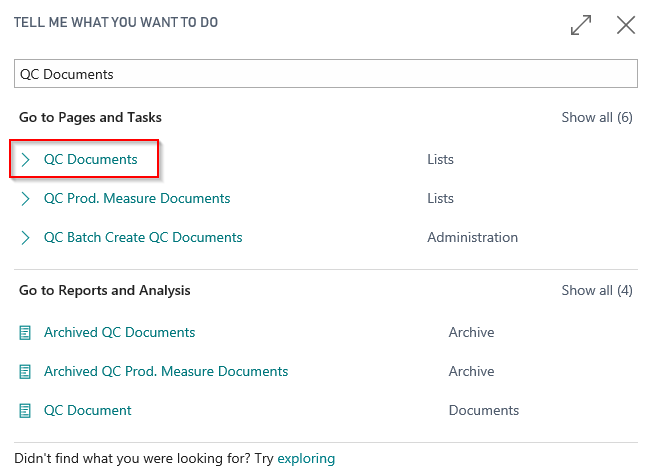
In the search box, enter QC Documents and click on the related link.
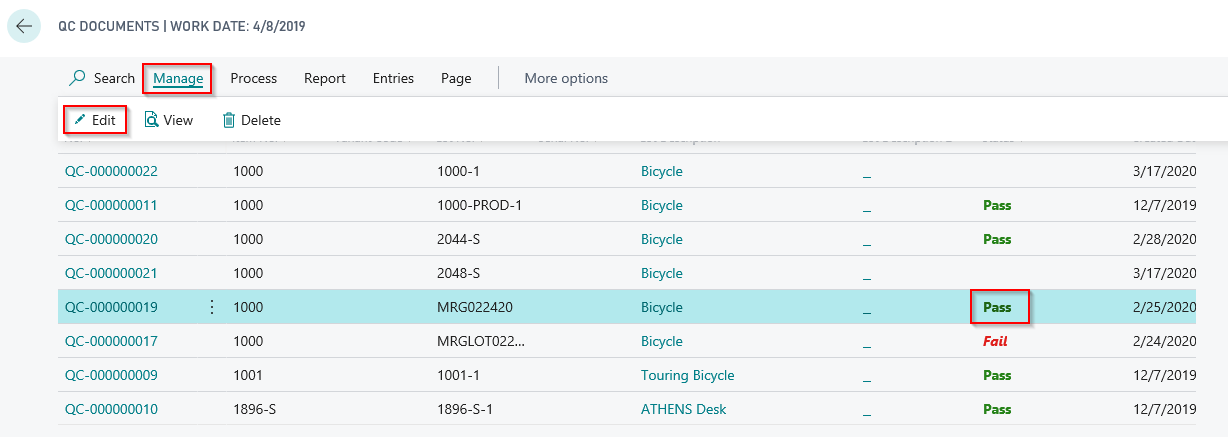
Select a QC Document with a Passed, Failed, or Completed status. Select the Manage tab and click Edit.
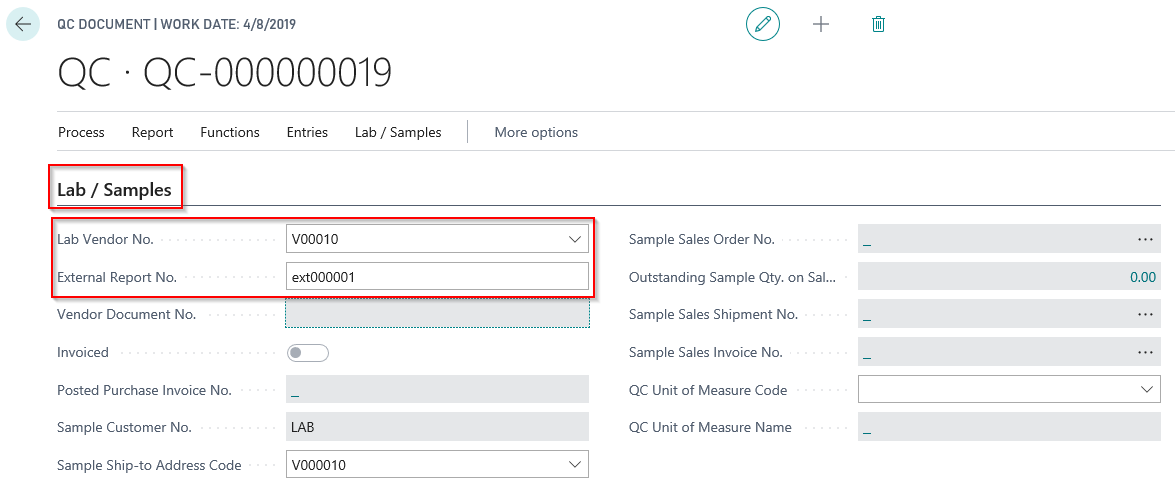
In the Lab / Samples FastTab select the Lab Vendor No. and enter in the External Report No. if it is blank. Close the document once complete.
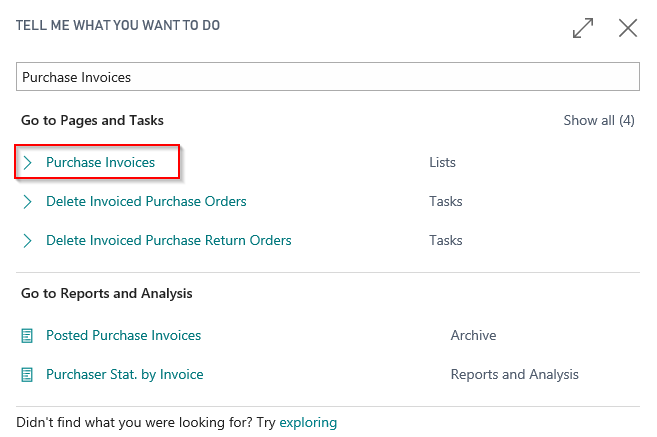
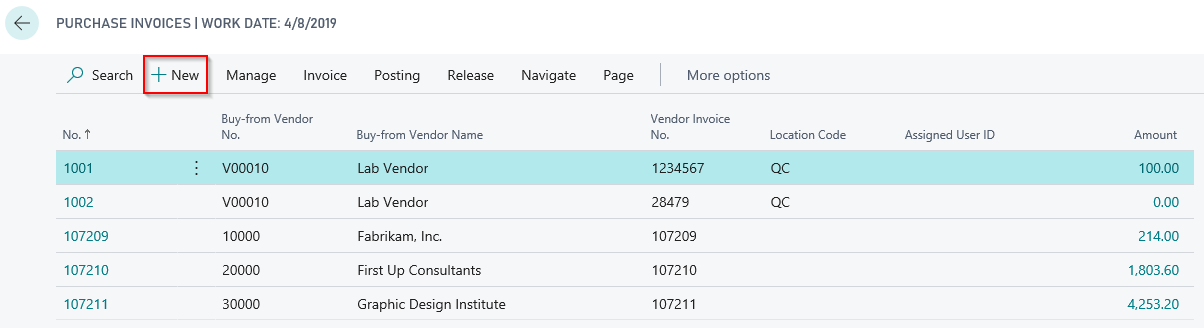
Go back to the search box and enter Purchase Invoices and select the related link. In the new window, click New to begin creating a new Invoice.
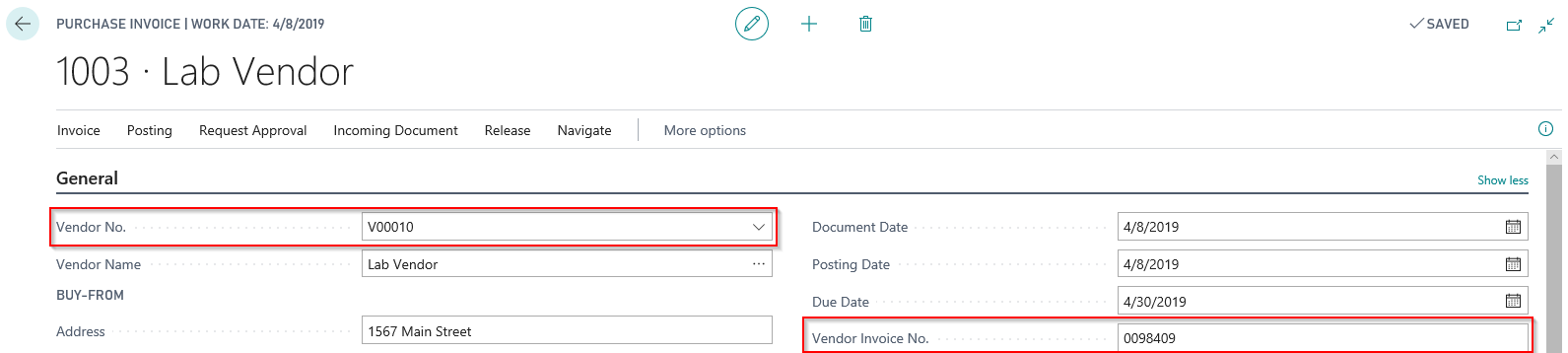
Enter the same Lab Vendor No. in the Vendor No. field that was used in the QC Document. Also enter the Vendor Invoice No. associated to the expense invoice received.
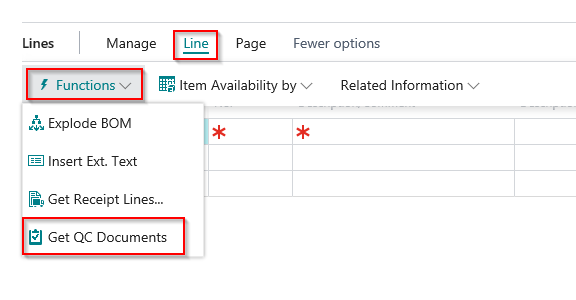
In the Lines FastTab select the Line tab, Functions and Get QC Documents.
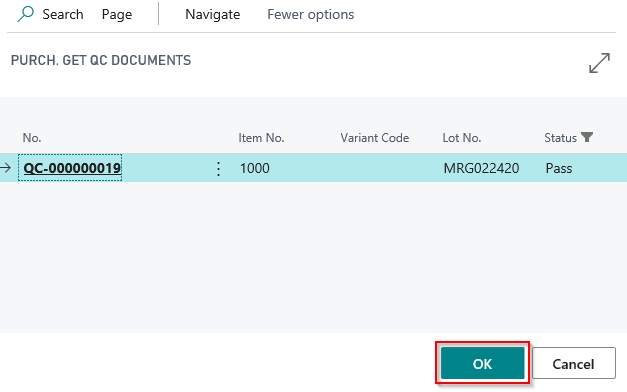
In the new window that appears will be a list of all available QC Documents available to include on the Purchase Invoice. Select one or more lines to pull on the invoice and click OK once complete.
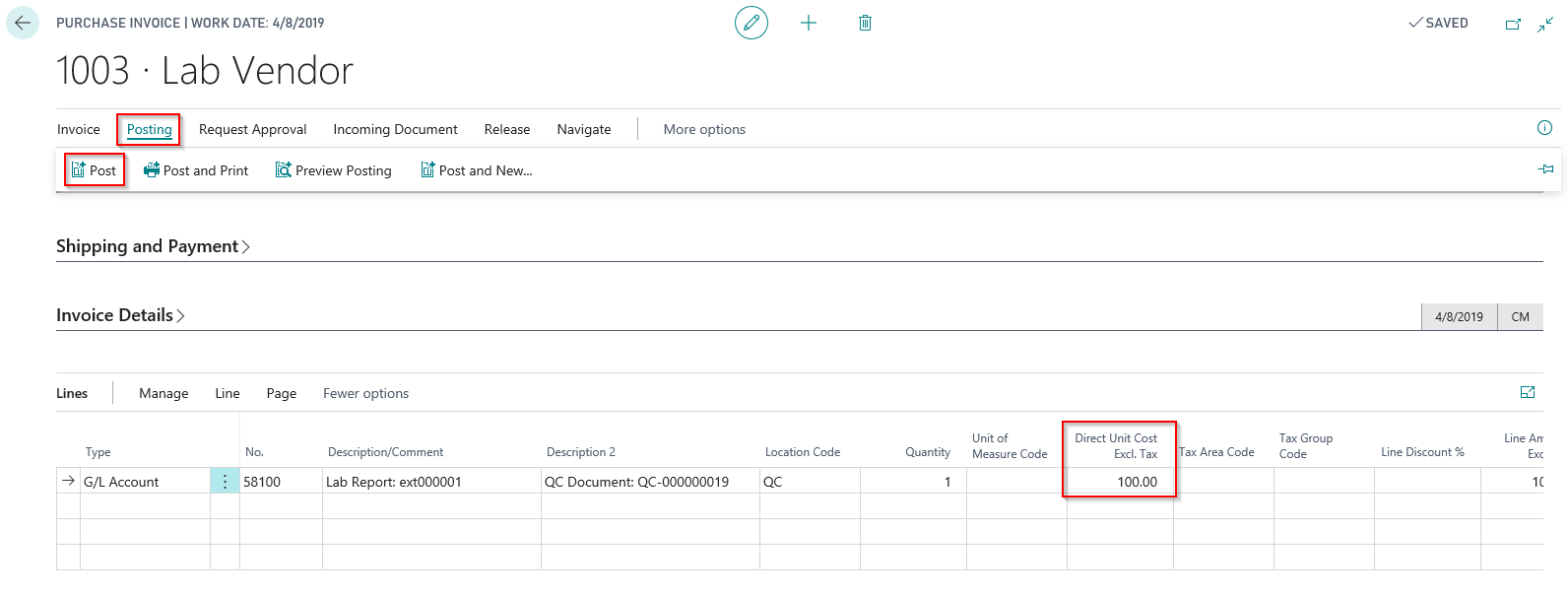
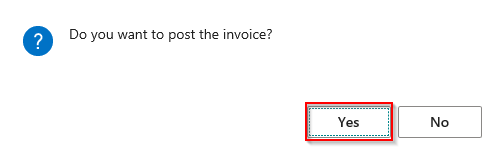
This will automatically insert the G/L Account from the Lab Purchase Billing Code from QC Setup. Enter the cost associated to the QC Document. Upon completion of the Purchase Invoice, you can proceed to Post.