QC Groups
QC Groups allow the creation of QC Tests for items the program requires for QC testing. QC Groups are a way to house all tests related to the item to be tested in a predefined format or grouping. QC Groups also allows for tests belonging to a QC Groups to be replicated and/or combined in a different QC Groups. An example of this would be a QC Groups for a production run. Within QC Groups, the user would have the ability to record consistent various measurements and input the registrations all within one grouping that can be attached to an item or routing as well.
Note
When QC Groups are attached to an item or routing, the program asserts that the tests within the QC Groups must be registered and completed before that item can be consumed or sold. To further this within the QC Module, on attachment of QC Groups to an item or routing, the program will create a QC Document for any positive adjustment of inventory when there is a related QC Groups on an item or routing. The exception would be where an item is set to inherit the testing and results. In this case, the item adjustment would then be linked to the source QC Document’s testing and results. More information can be found on the QC Source Item Inheritance in the QC Source Items section of this Help. See: How To: Add QC Source Item Inheritance
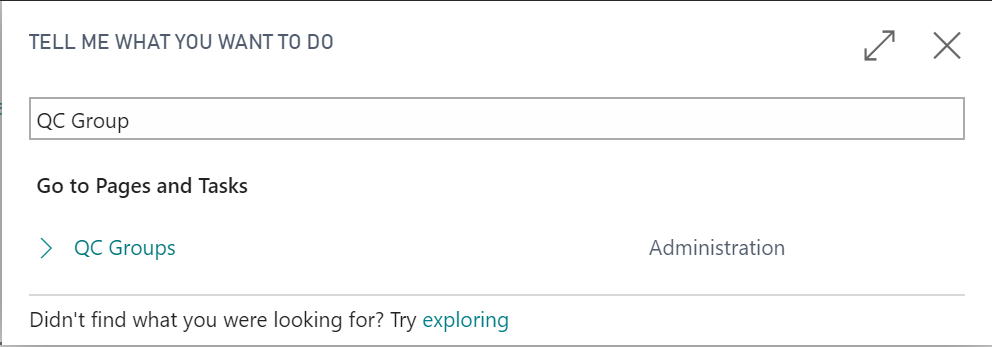
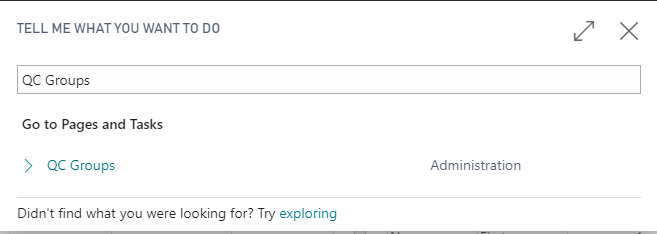
Navigate to QC Groups by clicking on the magnifying glass and in the search box type QC Groups.
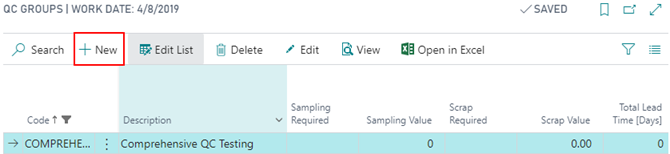
Click New to create a new QC Groups.

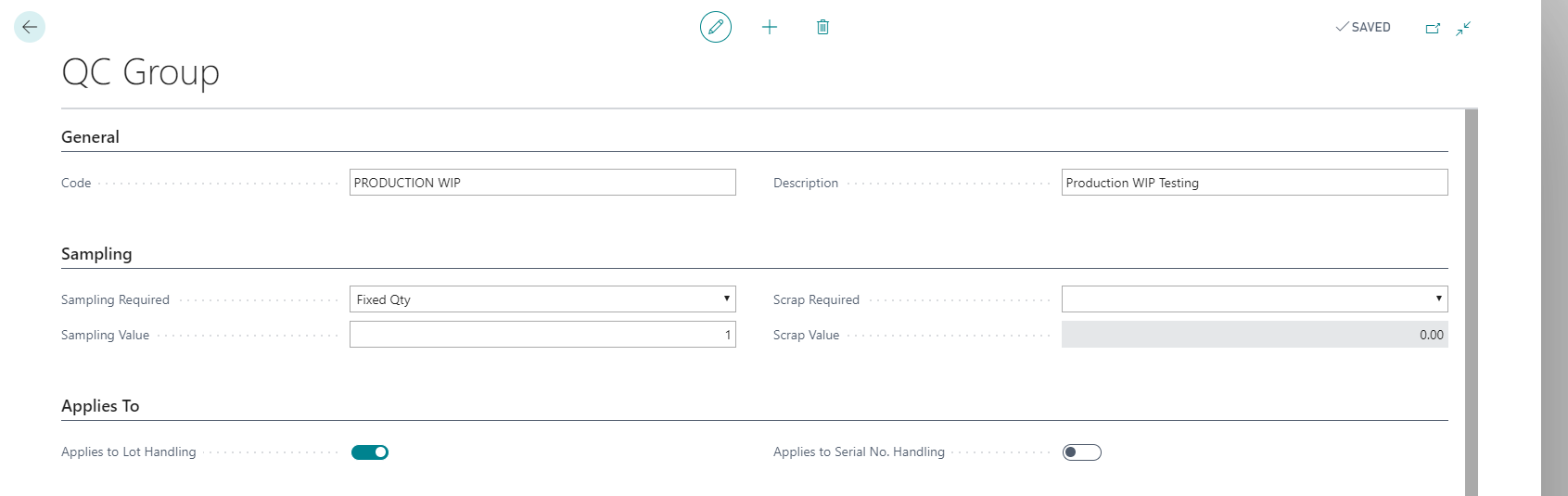
Within the QC Groups Card, the following fast tabs and field definitions are found.
General Fast Tab
This section indicates the naming convention and description of the QC Groups.
| FIELD NAME | FUNCTION |
|---|---|
| Code | User defined code for the QC Group. |
| Description | User defined description of the QC Group. |

Sampling Fast Tab
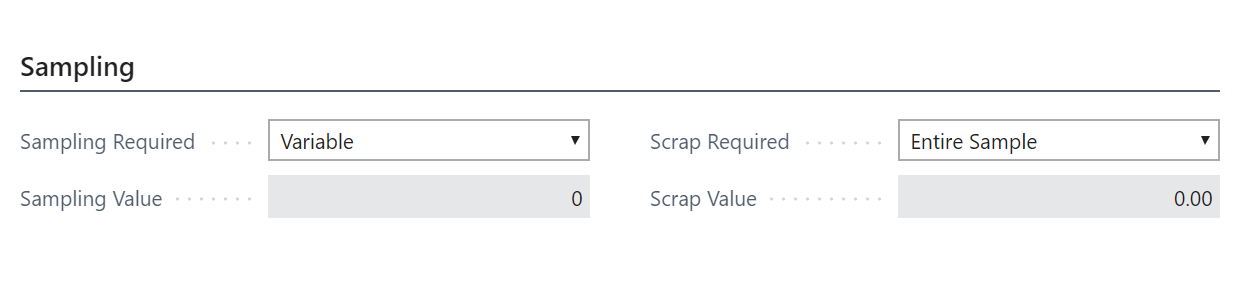
This section indicates the parameters set within the program for internal and external lab samples.
| FIELD NAME | FUNCTION | |
|---|---|---|
| Sampling Required | Options from the drop down: | |
| • Entire Lot: Sample of entire lot is required. | ||
| • % of Lot: Percentage sample of lot is required. | ||
| • Fixed Qty: A fixed quantity for | samples based on the item’s unit of measure as related in the Sampling Value field. | |
| • Variable: Assumed set of values, when variable is selected, the Sampling Value field is non-editable. | ||
| NOTE: Sampling is required based on State regulations for cannabis material. | ||
| Sampling Value | The value of the sample required. | |
| Scrap Required | • Entire Sample | |
| • % of Sample | ||
| • Fixed Qty | ||
| • Variable | ||
| • Defect Sampling | ||
| Scrap Value | The value of the scrap required. |
A complete walk through on Internal and External sampling processes can be found in the QC Document Functionality section of this page.
Applies To FastTab
This section indicates the application of the QC Groups settings as it relates to Lots and Serial numbers.
| FIELD NAME | FUNCTION |
|---|---|
| Applies to Lot Handling | If enabled, the QC Group settings apply to Lot Handling. |
| Applies to Serial No. Handling | If enabled, the QC Group settings apply to Serial No. Handling. |

QC Tests Fast-Tab
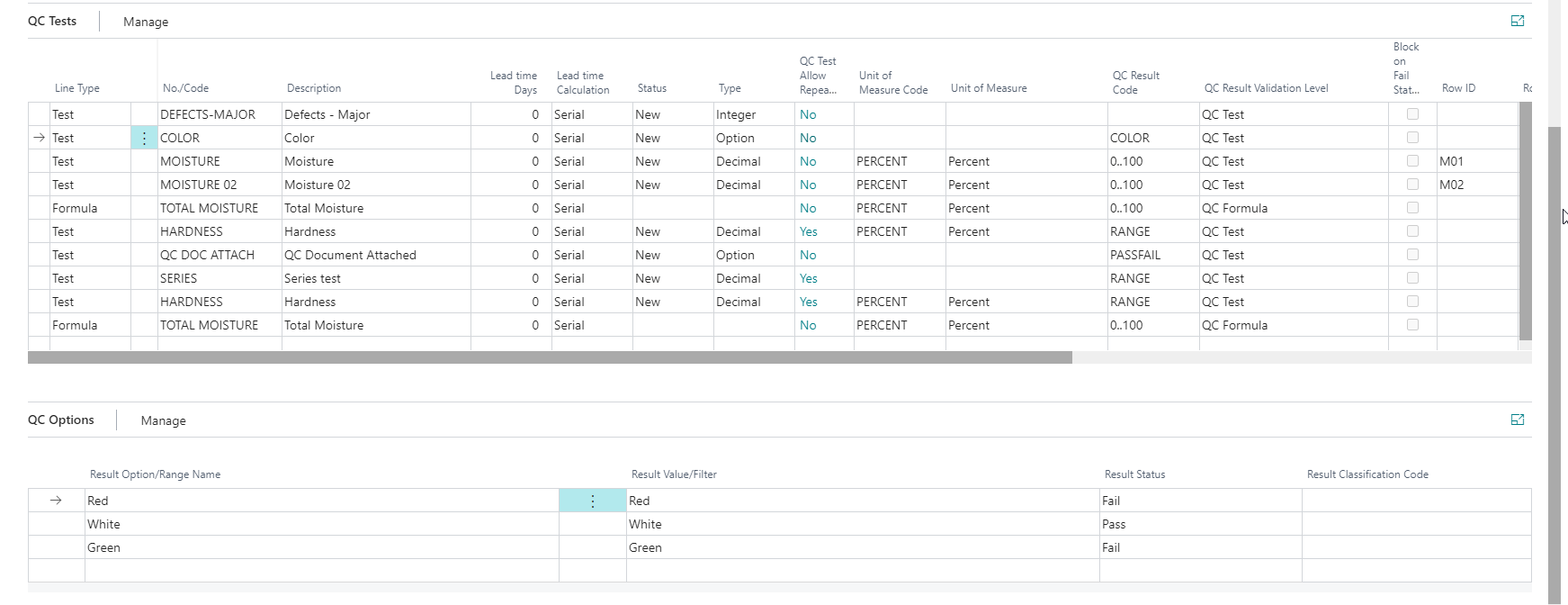
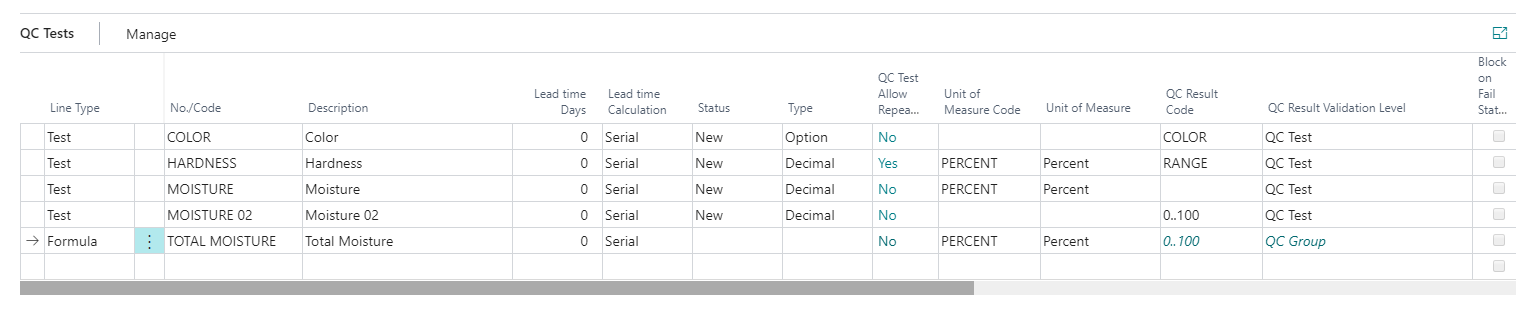
This section displays the values for the QC Tests. These lines can be completed/updated through the QC Groups and QC Tests page. The lines are populated with all the tests selected to be completed on the QC Document defined by the QC Groups. Like Account Schedules in standard BC, the program allows for editing within the tab for specific sections, formulas, and lines. The lines that are marked Test within the QC Tests tab that are non-editable are defined from the QC Tests page described later in this page.
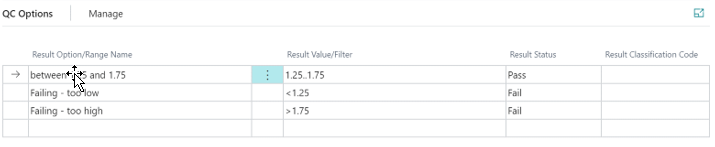
QC Options Fast Tab
This section only displays the values from the QC Tests. These lines can only be completed/updated through the QC Tests page. The Lines are populated with all the tests selected to be completed on the QC Document as defined by the QC Groups. Options are Pass/Fail only unless the filter is set on the line within QC Tests tab as formula, then the values are reflected as filtered specific to the parameters set in QC Tests tab.
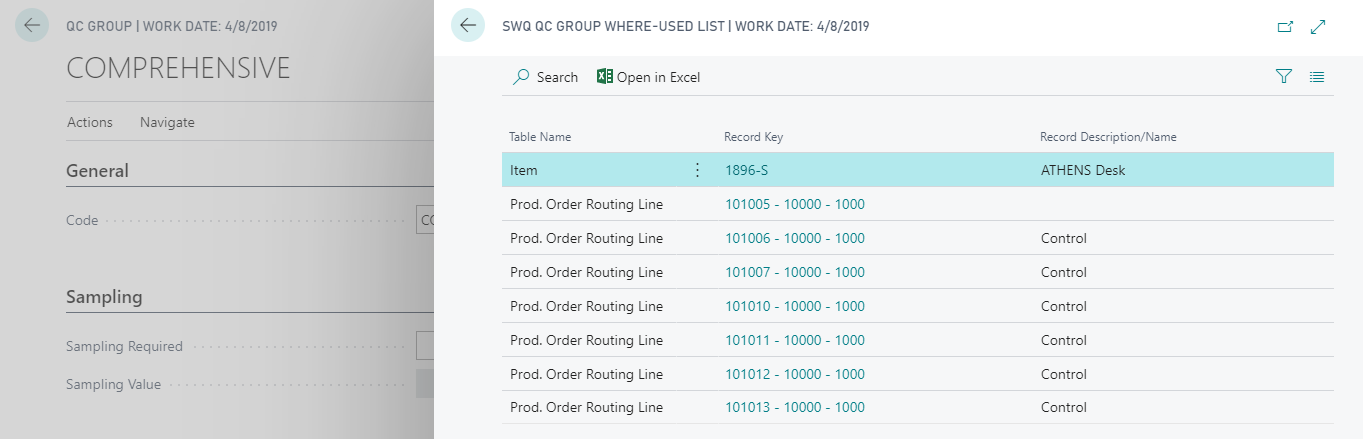
“Where Used” Feature
This feature allows you quick access to see where the QC Group is used throughout the system. This will show if a QC Group is currently attached to an Item, Item Category, Routing, Work Center, etc.
Navigate to QC Groups by clicking the magnifying glass, in the search box type QC Groups and select the related link.
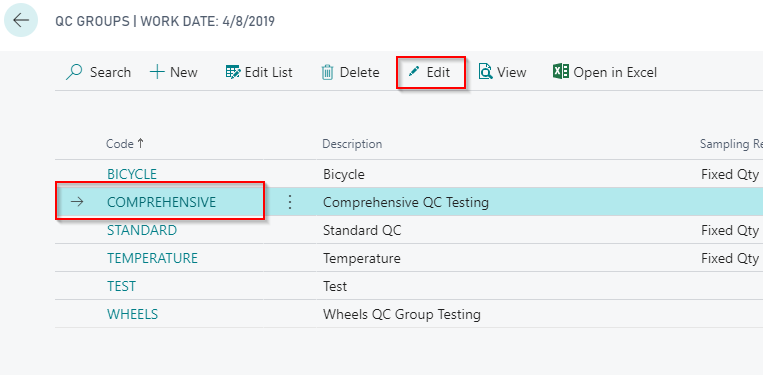
Click Edit or click on the QC Group Code to open the QC Group Card page.
In the ribbon, click Navigate and then select Where used…
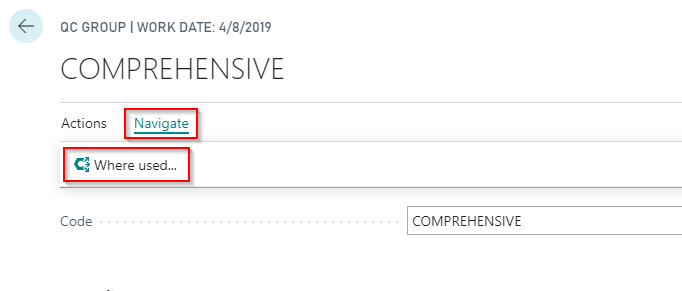
Upon clicking on Where used… this will display everywhere the QC Group is being utilized throughout Business Central.
Note
The Record Key is a hyperlink field that will take you directly to the associated record.
How To: Set Up a QC Group
Navigate to QC Groups by clicking magnifying glass, in the search box type QC Groups and select the related option.
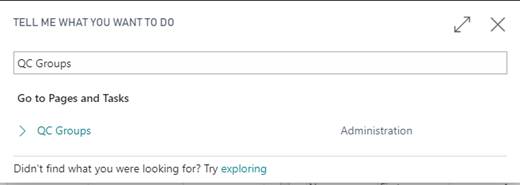
The QC Groups List page opens, click New to open the QC Groups Card.
Within the QC Groups Card, fill in the applicable FastTab fields as described in the above section.
Once the applicable fields are completed, the user can then attach QC Tests to the QC Groups. To attach the QC Tests to QC Groups, go to QC Tests FastTab and in the No. field from the dropdown, enter in the QC Test. The QC Options FastTab will populate based on the information entered in the No. field as described in above section.
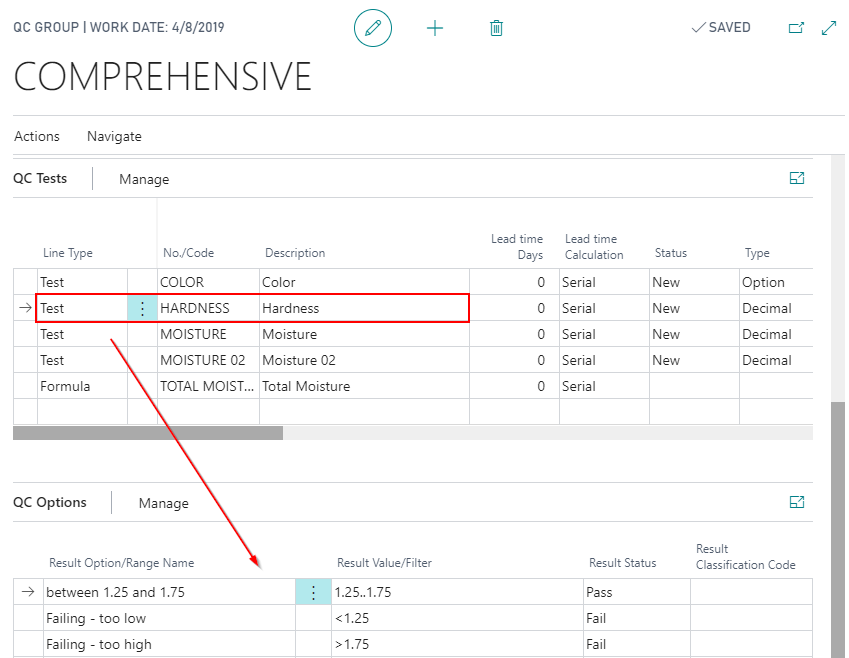
Once all QC Tests have been added to the QC Group Card, the QC Groups can be added to an item or group of items as described in the section below.
How To: Add QC Groups to Item Categories
Within QC and standard Business Central, the program has Item Categories. These Item Categories are used to group default item setup values for easier creation of new items. The user can default posting groups, attributes, costing method and parent categories within standard BC. With the addition of the QC Module, the user can assign default QC Groups for testing all items within the Item Category.
To add a QC Groups to an Item Category Card, navigate by clicking the magnifying glass and in the search box type Item Categories and select the related option.
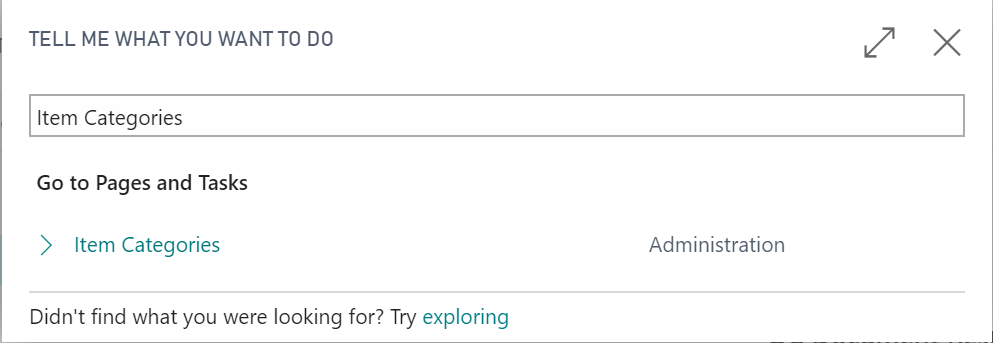
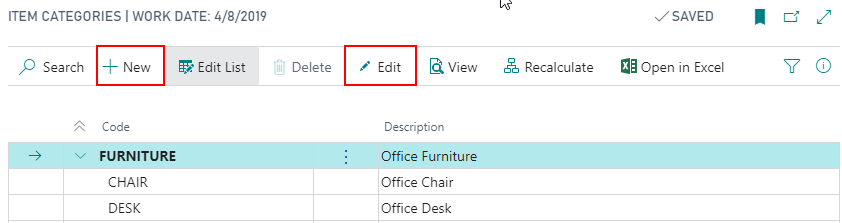
Click New or Edit to create or review Item Category Card.
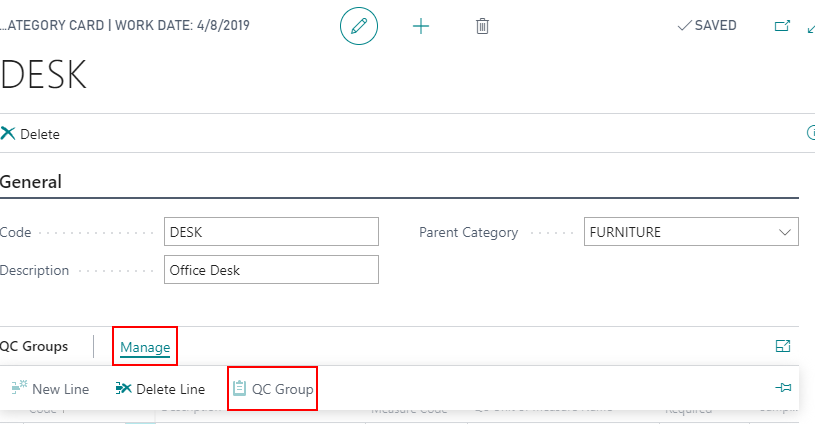
Within the QC Groups tab, the user can select an existing QC Groups to add to the Item Category Card or create a new QC Groups by clicking Manage/QC Groups.
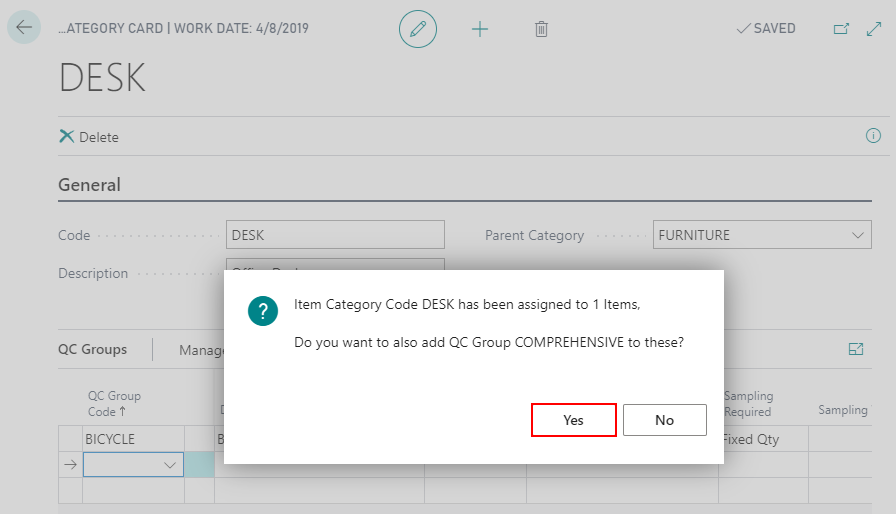
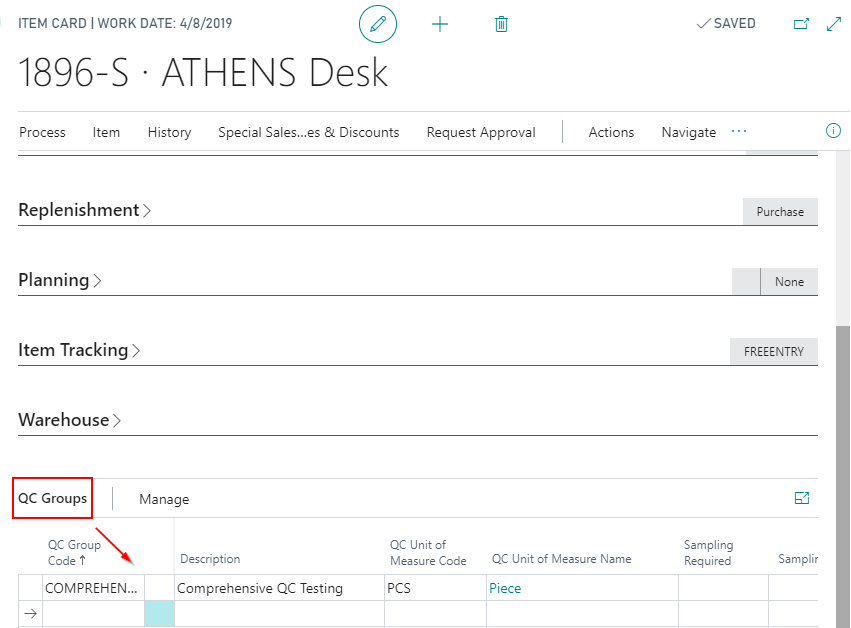
Once QC Groups has been attached to the Item Category, there will be a pop-up box and the program will ask if the user would like to assign the QC Groups to all the items within the code. If Yes is clicked, the QC Groups will now be a record on each item within the Item Category and accessible on the Item Card.
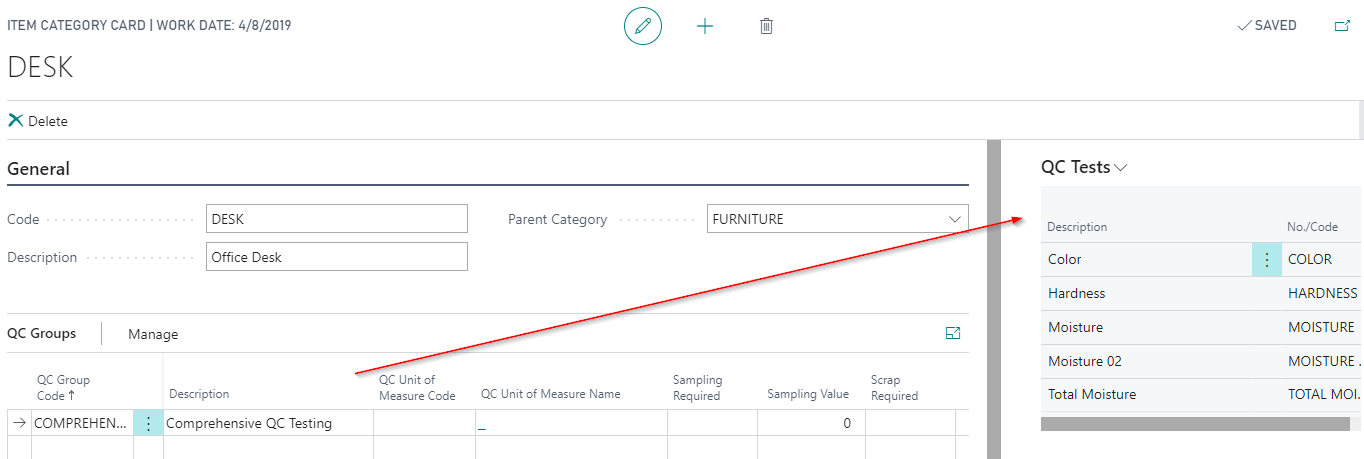
The user would then repeat this process for each Item Category and QC Groups.
How To: Add QC Groups to an Item
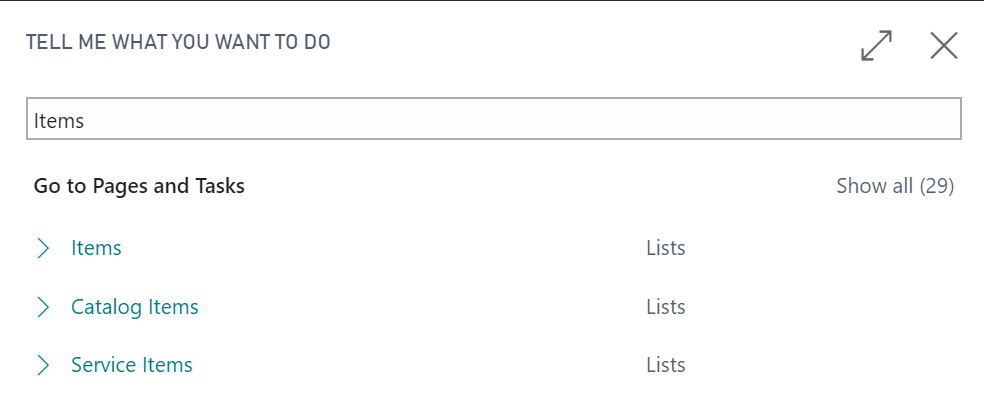
If the user wanted to add QC Groups to an individual item and not the Item Category, navigate by clicking the magnifying glass, in the search box type Items and select the related option.
Click into the item you wish to assign the QC Groups, select the appropriate QC Groups on the QC Group section and close out of the Item Card.
How To: Add QC Groups to Work Centers
Within QC and standard Business Central (BC), the program has Work Centers. These Work Centers are used in manufacturing to define specific locations where work can be performed. The user can define direct costs, indirect costs, and overhead costs for Work Centers within standard BC. With the addition of the QC Module, the user can assign a default QC Groups for testing the item at the Work Center. This QC Group will default when the user adds the Work Center to a Routing.
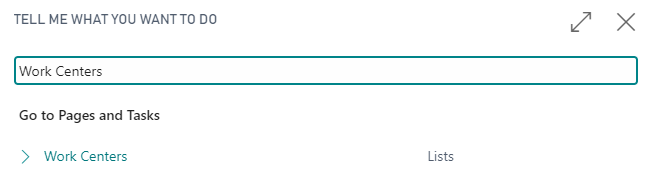
To add a QC Group to a Work Center Card, navigate by clicking the magnifying glass and in the search box type Work Centers. Select the related option.
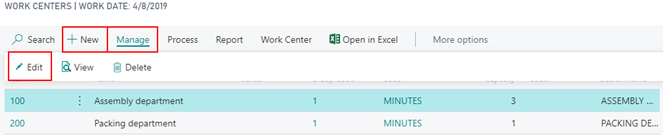
Click New or Edit to create or review Work Center Card.
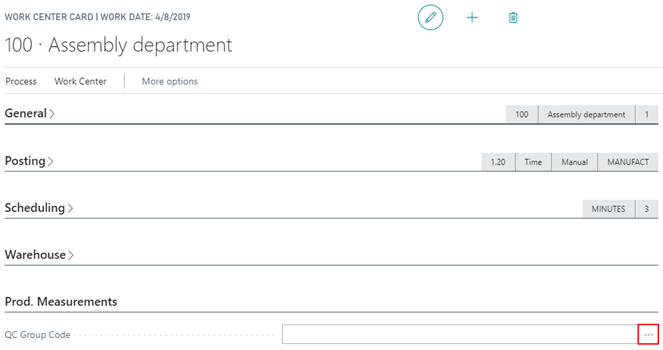
Within the Prod. Measurements tab, the user can select an existing QC Group to add to the Work Center by clicking the ellipse.
How To: Add QC Groups to Routings
Within QC and standard BC, the program has Routings. These Routings are used in manufacturing to capture the process requirements of a produced item. The user can operation steps, locations, and times on Routings within standard BC. With the addition of the QC Module, the user can assign a default QC Groups for testing the item as a process step in the Routing.
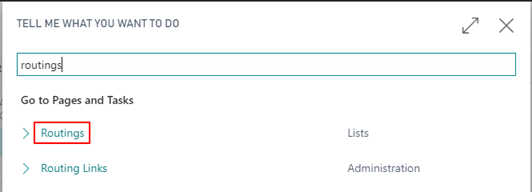
To add a QC Group to a Work Center Card, navigate by clicking the magnifying glass and in the search box type Routings. Select the related option.
Click New or Edit to create or review the Routing Card.

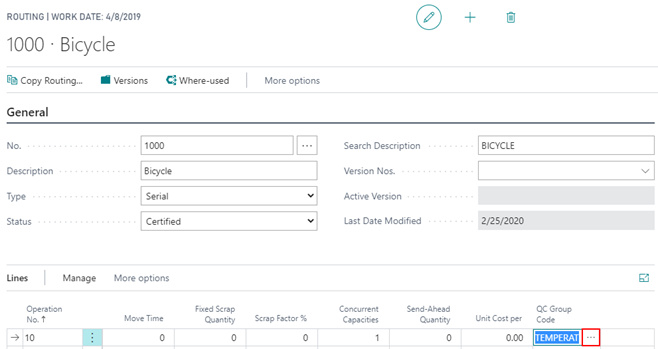
Within the Lines tab, the user can select an existing QC Group to add to the Routing Line by clicking the ellipse.
How To: Copy a QC Group(s) to a New QC Group
This functionality provides the ability to quickly copy one or many QC Groups during the creation of a new QC Group.
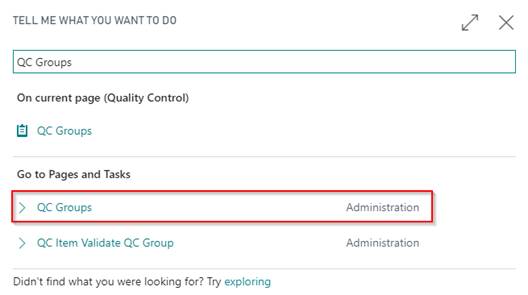
Navigate to QC Groups by clicking magnifying glass, in the search box type QC Groups. Select the related option.
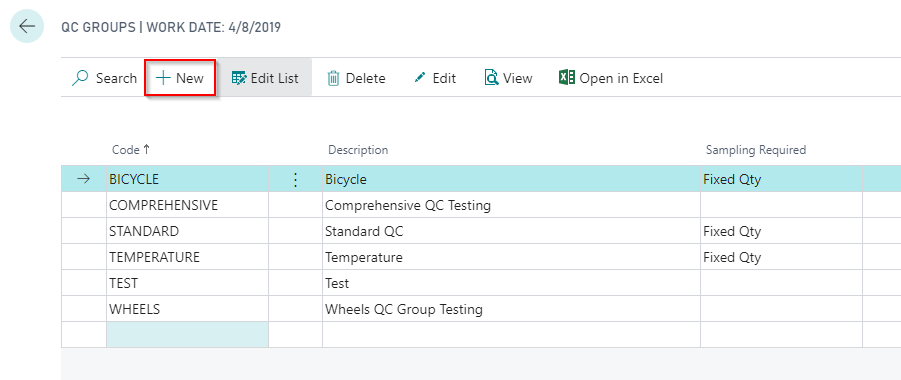
Click New to begin the creation of a new QC Group.
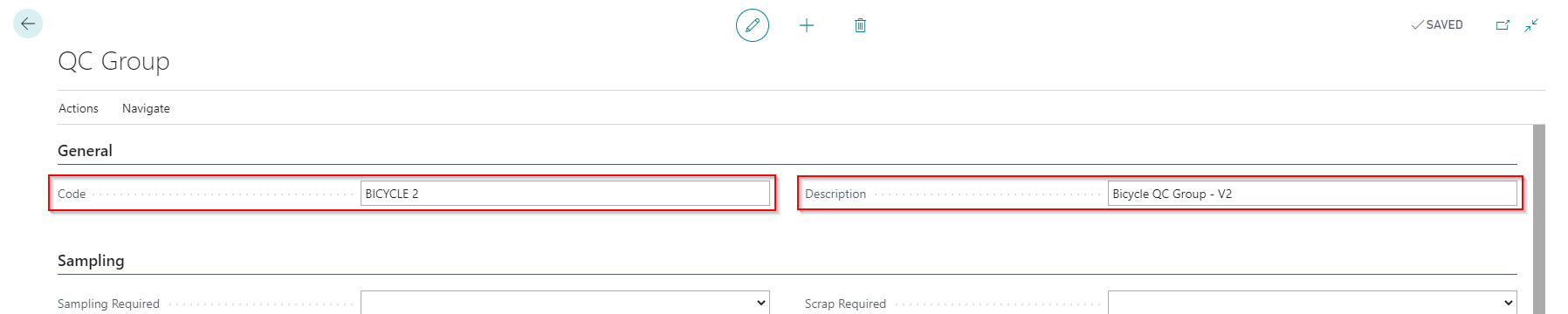
Enter a Code and Description for the new QC Group.
In the ribbon, click on Actions and then Copy from QC Groups…
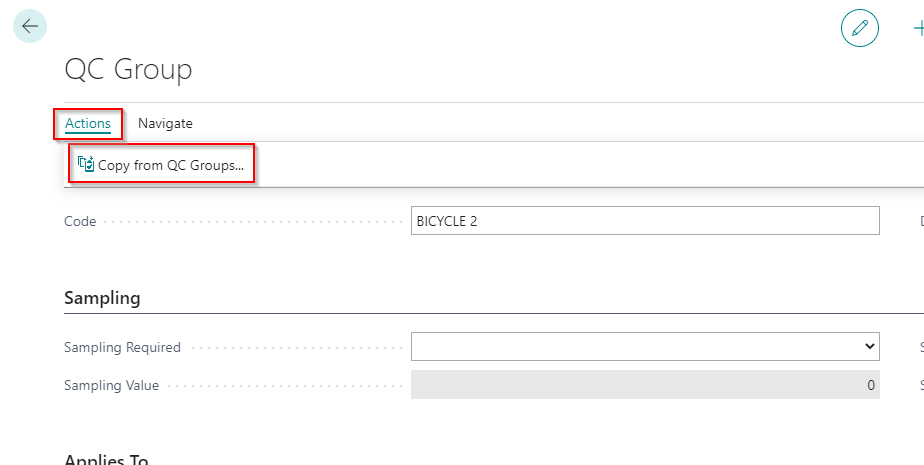
Select the QC Group(s) that will be added to the newly created QC Group. Click OK once complete.
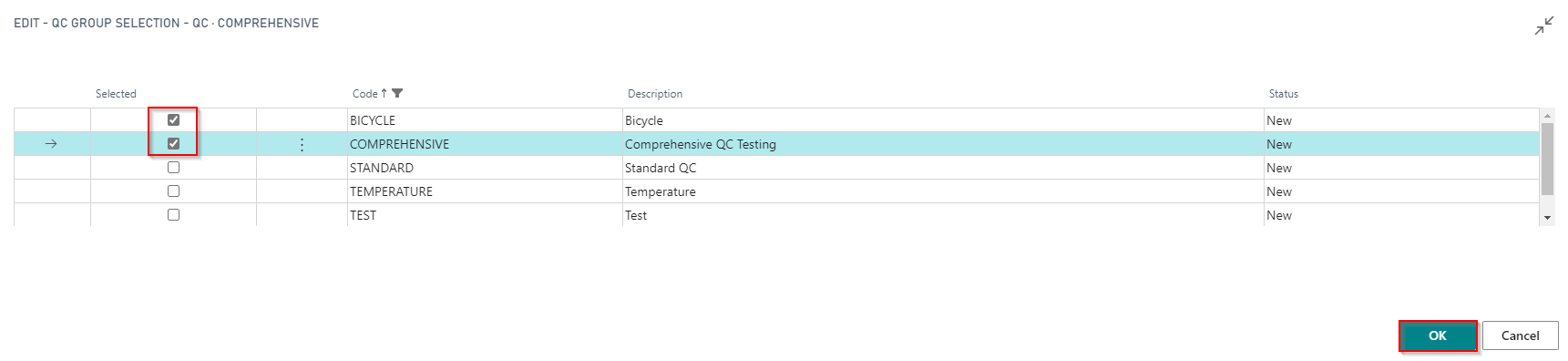
All the selected QC Tests and related QC Results will be added to the new QC Group.